
Verified against Gothic 1 Remake demo (May 2025) and developer statements. Full game releases June 5, 2026 — DLSS, FSR 3.1+, and Frame Generation will significantly change performance when enabled.
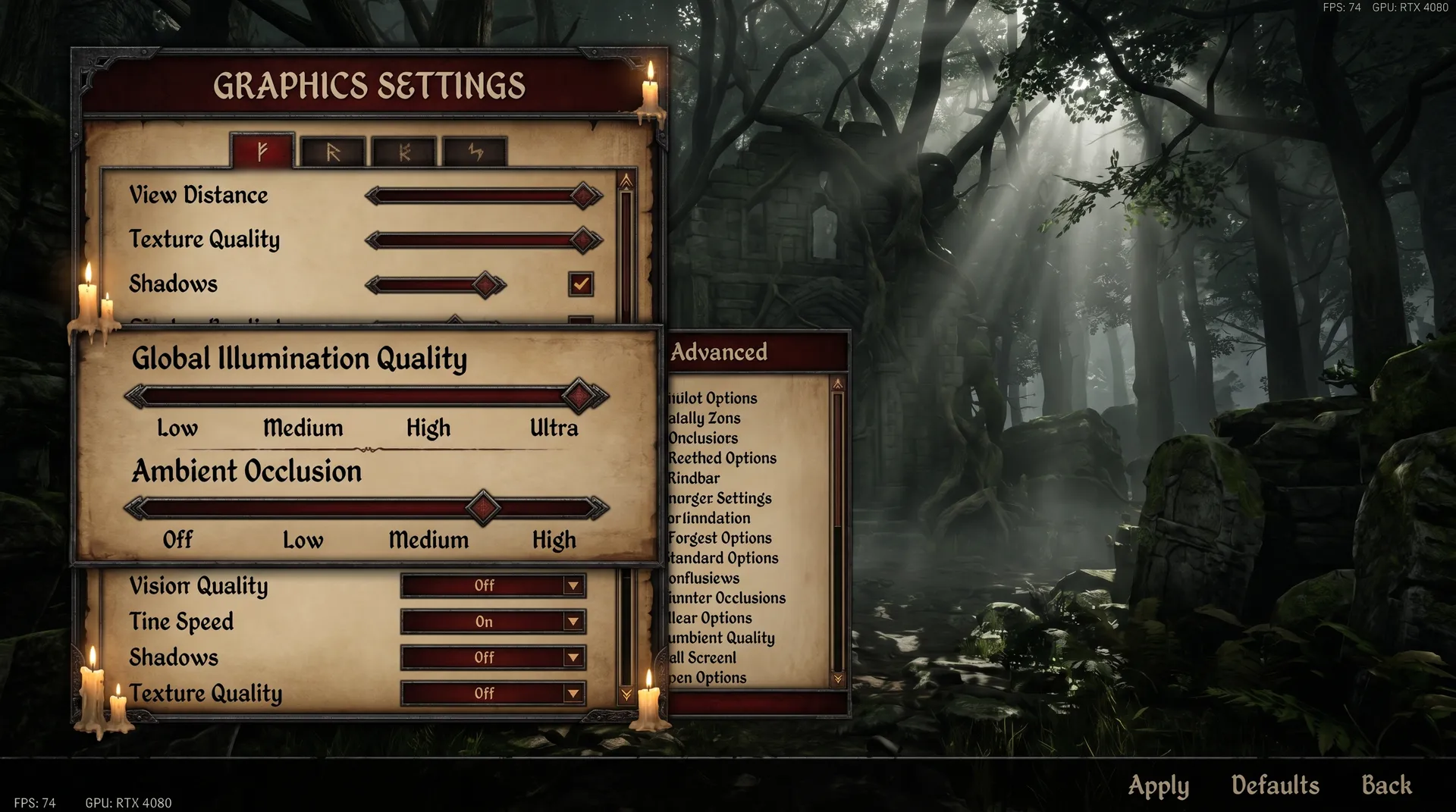
Gothic 1 Remake runs on Unreal Engine 5.4 with full Lumen global illumination and Nanite geometry active. At 4K on an RTX 4090, the Gothic preset delivers 85–90 FPS; the same GPU at maximum Alkimia Overdose settings collapses to 30–35 FPS. That 60% swing comes from three settings doing almost all the work. Identify those three, change them, and you recover most of the performance without meaningfully degrading the visuals.
This settings guide is part of our Gothic 1 Remake beginner guide hub — a complete walkthrough covering combat, factions, builds, and the differences from the original. For more performance guides across different games, visit our Game Settings hub.
Quick Start: 8 Changes to Make First
- Start on the Gothic preset — it is Alkimia’s calibrated baseline, not maximum quality
- Set Global Illumination Quality to Medium — the single highest-return change available
- Set Ambient Occlusion to 0
- Set Motion Blur to 0
- Set Bloom to 0
- Switch to Fullscreen mode — not Borderless Windowed
- Use TSR at 75% Resolution Scale — not TAA, not 100% native
- Update GPU drivers before any slider adjustment — community reports document a 20–30% FPS gain from a driver update alone
The Gothic Preset Myth: You Are Already Running at 75% Resolution Scale
The Gothic preset is named after the game itself, not after a generic quality tier — and it does something most players miss: it defaults resolution scale to 75%, not 100%. Gothic 1 Remake uses TSR (Temporal Super Resolution) to reconstruct the remaining 25% of the frame. TSR is sharp enough that the result looks close to native, but you are not rendering at your monitor’s full resolution when you load this preset.
This matters because players who manually push resolution scale to 100% after loading the Gothic preset often report a sudden 20–30 FPS drop and assume a bug. There is no bug — they switched from 75% TSR reconstruction to full native rendering on a Lumen-heavy title, which is substantially more expensive. Keep it at 75%. That is the calibrated setting the developers intended.
If you want more sharpness, raise to 90% — not 100%. The jump from 90% to 100% costs more than the jump from 75% to 90% for a proportionally smaller visual return.
The Three Settings That Eat Your FPS
1. Global Illumination Quality
Lumen is Gothic 1 Remake’s entire lighting system — dynamic global illumination, reflections, and ambient lighting all run through it simultaneously. Global Illumination Quality is the master dial. Moving from Gothic preset to Alkimia Overdose costs roughly 60% of your frame rate on an RTX 4090 at 4K: from 85–90 FPS down to 30–35 FPS. That is not a typo.
Alkimia Overdose is a hardware showcase, not a usable gameplay mode for any current GPU below the absolute top tier. Start on Gothic preset. If you are still below your frame-rate target, drop Global Illumination Quality one step to Medium — this single change returns more FPS than any other setting adjustment.
2. Ambient Occlusion
Disable this first. AO in Gothic 1 Remake runs through Lumen’s pipeline, not as a separate screen-space pass. Setting it to 0 does not produce the flat, shadow-free look you get from disabling SSAO in older engines — Lumen’s underlying GI still handles contact shadows. What disappears is the secondary AO layer on top of the base GI, which is subtle in practice and imperceptible in motion.
Community benchmarks consistently report 25–30% FPS recovery from setting AO to 0. Make this change, find a shadowed area with foliage or stone walls, and decide if you notice the difference. Most players do not.
3. Resolution Scale
As covered above: 75% TSR is the correct setting. The VRAM impact is significant — the demo shows 7 GB consumed at 1080p, 8 GB at 1440p, and 8–11 GB at 4K depending on GPU capacity. If you have an 8 GB card and play at 1440p, you are already at the VRAM ceiling at 75% scale. Reduce resolution scale before reducing any other quality setting — it lowers VRAM pressure and gives TSR’s reconstruction algorithm better headroom.

TSR vs TAA: Use TSR
TAA is available in the demo and performs faster than TSR, but community testing found TAA actively blurs texture detail — described as “destroying texture quality” even at maximum settings, particularly on vegetation and fine geometry. TSR costs more but produces substantially better image quality. At 75% resolution scale, TSR’s temporal reconstruction is operating at its most effective and the difference over TAA is marked.
The demo does not include DLSS or FSR — Alkimia Interactive confirmed both arrive with the full game on June 5, 2026, with FSR 3.1 or above specifically mentioned. When those land, DLSS Quality mode on RTX 40-series hardware will likely outperform TSR at equivalent resolution settings. Until then, TSR at 75% is the correct choice. For a technical breakdown of how anti-aliasing methods differ across GPU generations, see our anti-aliasing guide.
Best Settings by GPU Tier
GPU tier thresholds come from GameGPU demo benchmark data and community reports targeting 60 FPS. All entries assume TSR at 75% resolution scale, AO set to 0, Bloom set to 0, and Fullscreen mode active.
| GPU | Resolution | GI Quality | Notes |
|---|---|---|---|
| RTX 4090 / RX 7900 XTX | 4K | Gothic | Can push to 90% res scale |
| RTX 4080 / RX 7900 XT | 4K | Gothic | Stay at 75% scale |
| RTX 4070 Ti / RX 7800 XT | 1440p | Gothic | 75% scale comfortable |
| RTX 4070 / RX 7700 XT | 1440p | Medium | Drop GI to Medium if needed |
| RTX 3080 / RX 6800 XT | 1080p | Gothic | 60 FPS achievable |
| RTX 3070 Ti / RX 6700 XT | 1080p | Medium | AO=0, Motion Blur=0 required |
| RTX 3060 / RX 6600 XT | 1080p | Low–Medium | 55–72 FPS range |
| GTX 1060 / RX 580 | 1080p | Low | Playable; all extras off |
When not to use Alkimia Overdose: Treat Overdose as a photo mode preset. Even an RTX 4090 runs at 30–35 FPS at 4K on this setting — below the comfortable threshold for an action RPG. No current GPU sustains 60 FPS at 4K on Overdose.
Full Game Launch: DLSS, FSR 3.1+, and Frame Generation
Alkimia Interactive confirmed on Steam that the demo deliberately ships without upscaling: “In the Demo there is not DLSS/FSR. In the final game there will be such modern technologies.” A developer additionally confirmed FSR 3.1 or above for the full release. DLSS, FSR 3.1+, XeSS, Frame Generation, and Hardware Ray Tracing all arrive June 5, 2026.
If you own an RTX 40-series card, DLSS Quality mode at 1440p or 4K will push frame rates 40–60% above the GPU tier table numbers above. Do not make hardware upgrade decisions based on demo performance — wait for the full game with DLSS active. The math changes substantially.
Five Pro Tips Before You Touch Any Slider
- Fullscreen, not Borderless Windowed. Multiple community reports document significant FPS gains when switching to exclusive fullscreen — the OS compositor layer is bypassed and the GPU has direct display access.
- Update GPU drivers before adjusting settings. A driver plus BIOS update produced a 20–30% FPS improvement for at least one community member before any in-game changes. Do this first; it changes your baseline.
- Restart after changing settings. The demo has a confirmed bug where settings changes do not apply until you fully close and relaunch the game. If a change appears to have no effect, restart before concluding it does nothing.
- Expect FPS drops near water. Waterfall and lake areas produce noticeably worse frame times than the open-world average — community testing identified these as specific geometry-heavy locations, not a general optimization issue. Settings cannot fix this.
- Reduce FOV if you are borderline. Dropping from 100 to 85 FOV delivered a measurable FPS gain on an RTX 3060 at 1080p. Small gain, but free.
For system-level PC optimization that compounds with in-game settings, see our complete PC optimization guide.
FAQ
Should I use V-Sync in Gothic 1 Remake?
V-Sync off with a frame cap set 3 FPS below your monitor’s refresh rate gives better frame pacing and eliminates input lag. V-Sync on forces GPU output to match display timing precisely, which creates stuttering every time FPS dips below the target. The exception is severe screen tearing at max refresh rate — in that case, V-Sync on stops tearing at the cost of latency. For a full breakdown of when each option applies, see our V-Sync guide.
Will Gothic 1 Remake run on an 8 GB VRAM card?
At 1080p, yes — demo benchmarks show 7 GB VRAM usage at 1080p across all tested hardware. At 1440p, consumption reaches 8 GB, putting an 8 GB card right at its limit. At 4K, you need at least 10–11 GB. If you have 8 GB and plan to play at 1440p, keep resolution scale at 75% and avoid higher GI tiers to stay within budget.
Is Gothic 1 Remake CPU-limited?
No. Community testing found minimal CPU bottlenecking even on budget hardware — the official minimum spec lists the i7-7700K and Ryzen 5 1600X as sufficient, and reports confirm that i3-tier processors do not significantly drag frame rate. This is a GPU and VRAM-limited title. Prioritize GPU-side optimizations; CPU upgrades will not move the needle here.
Sources
- Gothic 1 Remake Demo GPU Benchmark Test — GameGPU (en.gamegpu.com)
- Gothic 1 Remake Official PC Requirements — DSO Gaming
- DLSS/FSR Developer Confirmation — Steam Community (Alkimia Interactive)
- TSR vs TAA Community Performance Testing — Steam Community
- Gothic 1 Remake — Wikipedia

I've been playing video games for over 20 years, spanning everything from early PC titles to modern open-world games. I started Switchblade Gaming to publish the kind of accurate, well-researched guides I always wanted to find — built on primary sources, tested in-game, and kept up to date after patches. I currently focus on Minecraft and Pokémon GO.